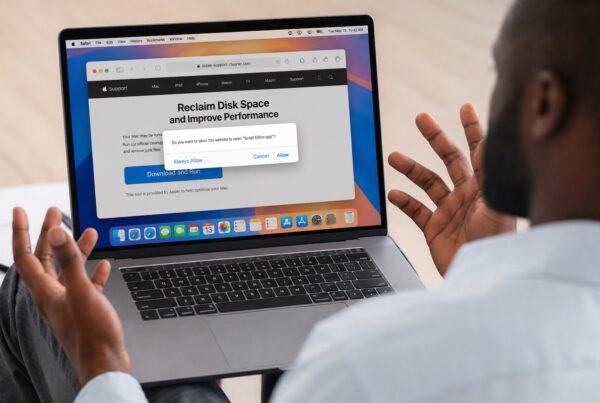


As the 2026 digital reset takes shape, more people are seeing how online trouble often starts with small, easy-to-miss habits. From weak passwords to phishing scams and overshared personal information, the risks are growing, but a few smart steps can help you stay ahead of them.
In the first three articles of this series, we covered why you should and how to backup, the habits that prevent most digital problems and how to recognize common scams before they escalate. To wrap things up, we want to focus on where trouble often begins online – and how to steer clear of it with minimal effort.
Most security issues don’t start with a dramatic breach. They start with a moment of uncertainty: a pop-up, a strange website, or a prompt that asks you to act quickly. Knowing which situations to avoid goes a long way toward staying safe.
Be Cautious with Unfamiliar or “Fringe” Websites
You’re far more likely to encounter malware or scams on websites that operate on the edges of the internet. Sites offering pirated software, cryptocurrency schemes, gambling, adult content, or “too good to be true” deals are common sources of trouble.
That doesn’t mean reputable sites are immune — but the risk is much higher in these other spaces. The more you can avoid them, the lower your chances of encountering malware or deceptive prompts.
Ignore Pop-Ups Claiming There’s a Problem with Your Device
One of the most common tactics we still see is the alarming pop-up that claims:
- Your Mac or iPhone is infected
- Your data is at risk
- You need to call a number immediately
- You must grant access or download software to “fix” the issue
Apple does not issue warnings this way.
- Do not call the number.
- Do not click the link.
- Do not grant remote access.
If you’re concerned, close the browser tab or restart your device. If the message persists or you’re unsure, reach out to G2 Computers or other trusted support provider for confirmation.
Never Grant Remote Access Unless You Initiated the Request
Legitimate tech support does not cold-call, text, or pop up uninvited.
Granting remote access to someone who contacted you is one of the fastest ways to lose control of your device. Once access is granted, scammers can install software, extract data, or pressure you into unnecessary payments.
If you didn’t seek out help first, it’s safest to decline and verify independently.
Be Careful What You Download – and What You’re Asked to Run
Another red flag is being asked to download software or paste commands into Terminal to ‘verify’ something or ‘fix’ an issue. This is a common way malware is installed without the user realizing it.
As a general rule:
- Don’t download software unless you know exactly what it is and where it came from
- Don’t run scripts or Terminal commands copied from a website
- Don’t install ‘security tools’ suggested by pop-ups or ads
When in doubt, pause and ask.
When You’re Unsure, Slow Down and Verify
Scammers rely on urgency. Taking even a few minutes to stop, close a browser, or verify information independently often breaks the spell.
If something feels off:
- Step away from the message
- Go directly to a company’s official website
- Contact a trusted professional
- Or bring your device in for a quick check
A small pause can prevent a long cleanup.
[/vc_column_text]A Final Thought
Staying safe online doesn’t require constant vigilance or technical expertise. It’s about recognizing a few common warning signs and knowing when not to engage.
These three articles aren’t about fear – they’re about confidence. With a handful of simple habits, you can use your devices comfortably, productively, and with far fewer surprises.
If you ever want a second opinion, that’s what we’re here for at G2 Computers.
For customers who want an extra layer of protection, G2 Computers often recommend a combination of Malwarebytes and Watchman Monitoring. Malwarebytes helps block and remove malicious software, while Watchman Monitoring – a professional-grade monitoring service used by Apple-focused IT providers. It quietly keeps an eye on system health, security signals, and backups, and alerts our team when something needs attention – often before the user notices a problem.
What Watchman does well (in human terms)
- Proactive monitoring, not reactive repair
- Watches for:
- Security threats
- Failed or missing backups
- Disk health issues
- System warnings
- Risky configuration changes
- Human-reviewed alerts, not noisy consumer notifications
- Designed specifically for Apple AND hybrid (Apple + PC) environments
- Lets you stay focused on work and life, not device babysitting