
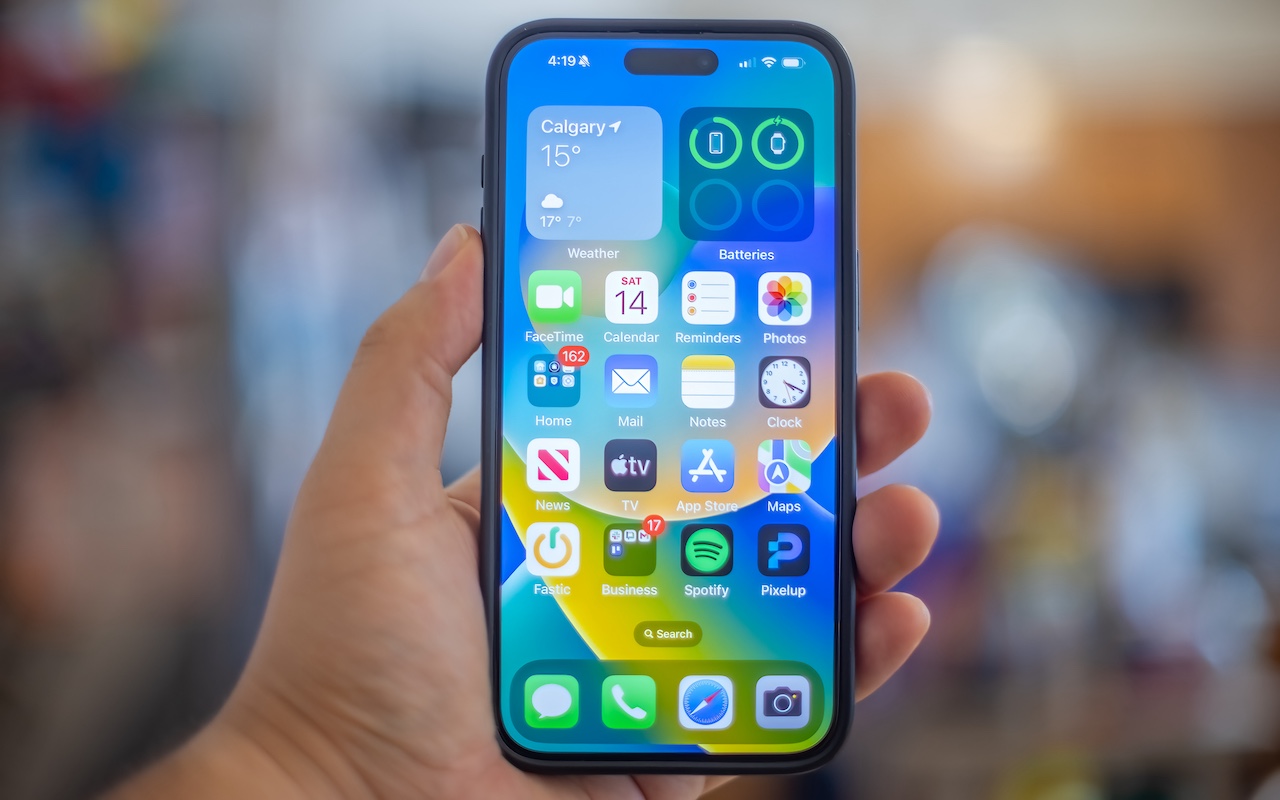
A new shortcut in iOS 18 and iPadOS 18 makes it easy to convert an app’s icon on the Home Screen into a widget of any size supported by that app.
A new shortcut in iOS 18 and iPadOS 18 makes it easy to convert an app’s icon on the Home Screen into a widget of any size supported by that app.

With a press of your Mac’s Space bar, you can use Quick Look to preview the contents of nearly any selected file, saving you time looking for the right file, comparing files, evaluating photos, and more. Try it in apps other than the Finder, too!

Safari 18 debuts some notable new features, including Highlights, Distraction Control, a redesigned Reader, and—on the Mac—a new Video Viewer that supports Picture in Picture.

If you haven’t explored Apple’s Tips app on the iPhone, iPad, or Mac recently, check it out. Apple has added a lot more content, including device and app user guides, highlights of new features, and interactive practice guides.

People who like using the Mac’s window proxy icons (and if you don’t know about them, you should!) can make them visible at all times with an option deep within System Settings. Here’s how to find it and what you can do with proxy icons.

The new Control Center in iOS 18 and iPad OS 18 is vastly more customizable and has more options. Our article tells you what’s on offer and how to use it.

Although it may not be exciting, having more iCloud+ storage significantly improves the experience for those with multiple Apple devices. We explain what iCloud+ provides, how much you should get, and how to get started.
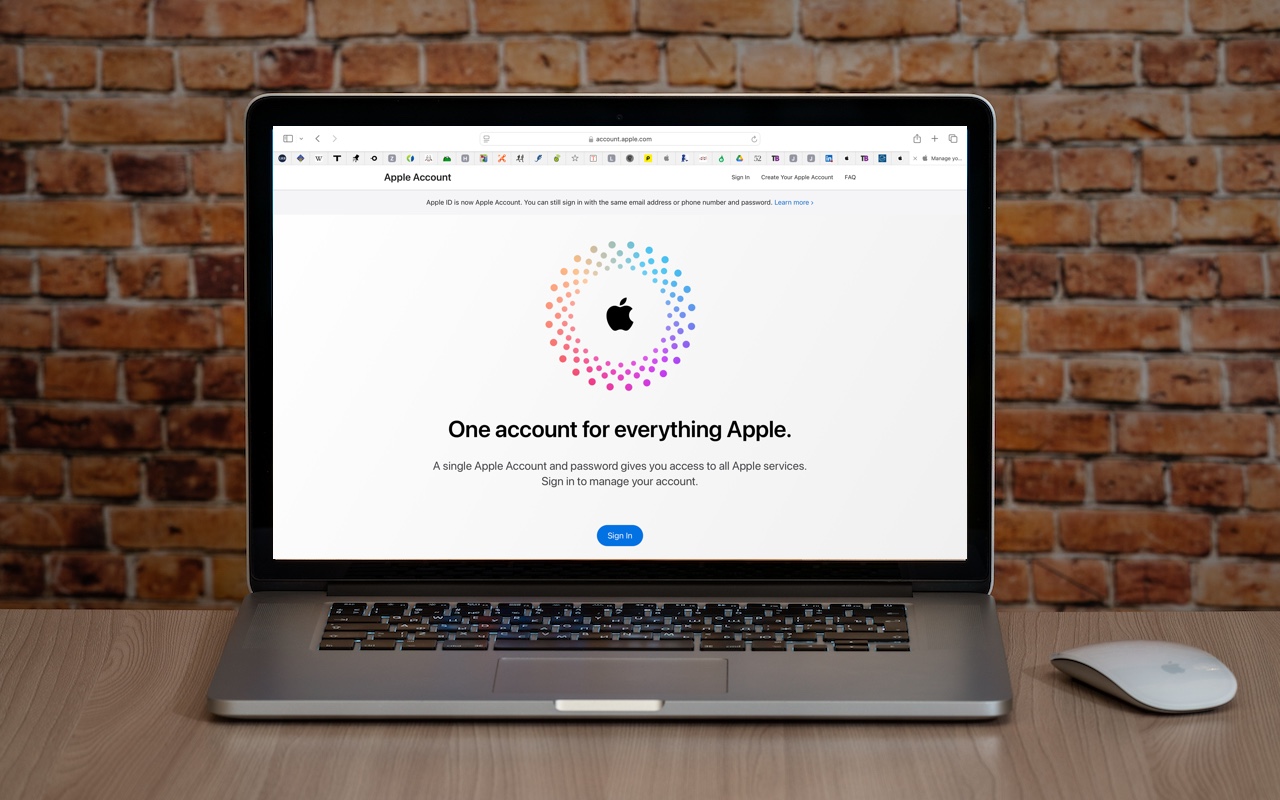
Apple has renamed Apple ID to Apple Account everywhere as of macOS 15 Sequoia, iOS 18, iPadOS 18, and watchOS 11. Nothing has changed functionally, but keep it in mind when reading tech articles or support documentation.
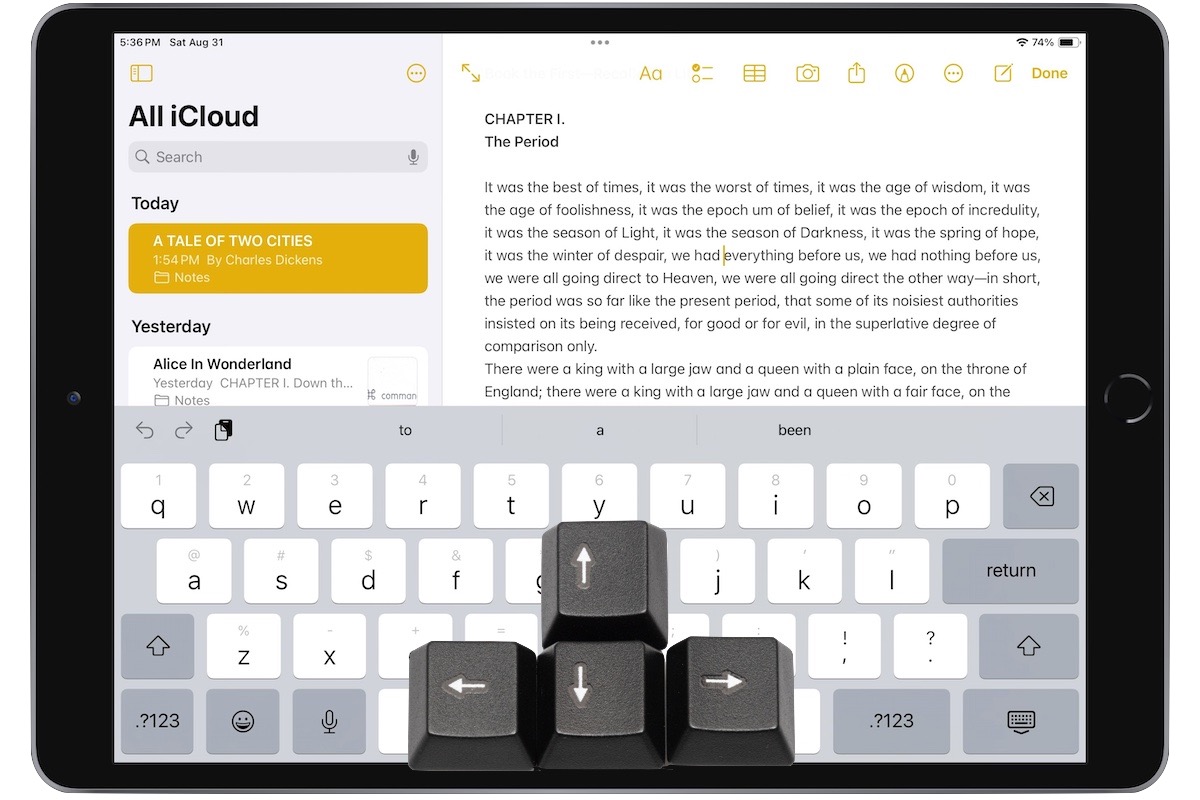
Editing text on an iPhone or iPad will never be as easy as on a Mac, but with these tips, you can quickly position the insertion point and select words and paragraphs using your finger.
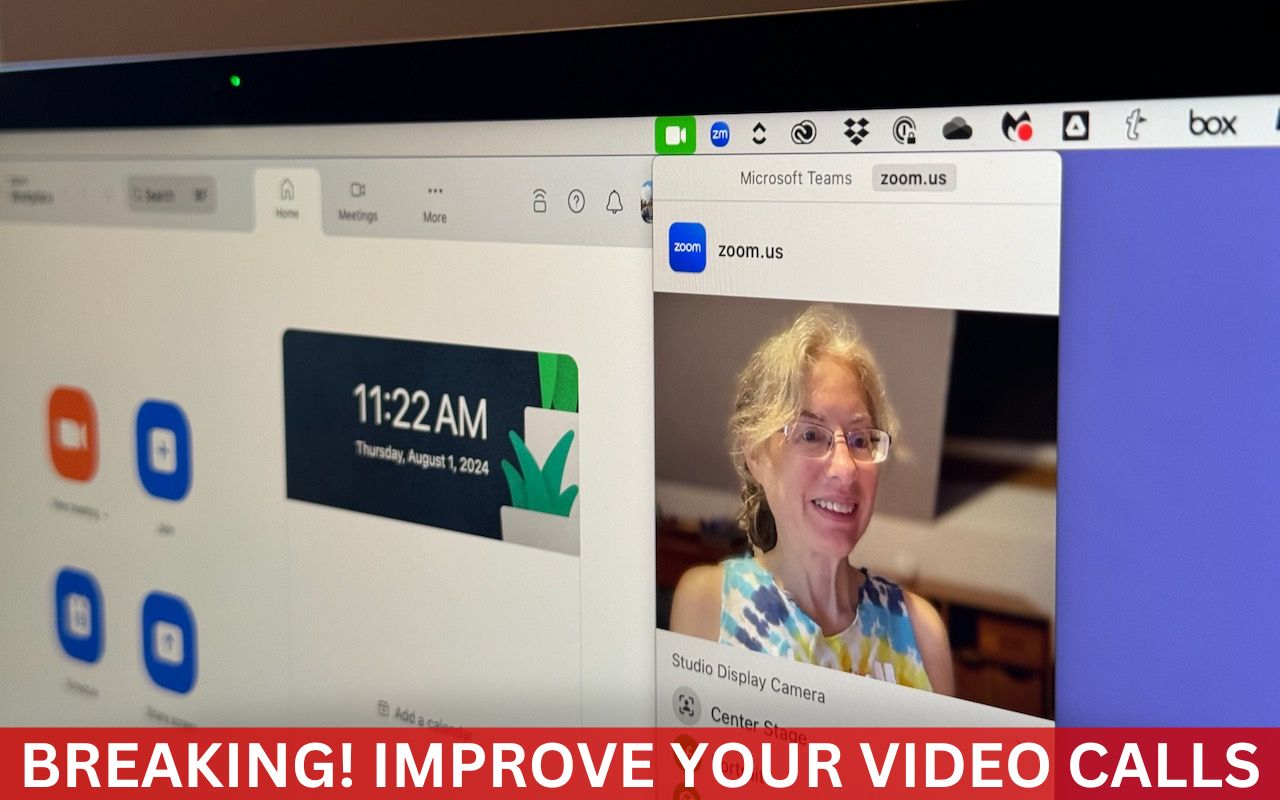
Although videoconferencing has become a part of everyday life for lots of us, many people don’t realize that macOS provides helpful options for improving our video, audio, and presentations.

info@go2g2.com
215-321-6542
1116 Taylorsville Road
Washington Crossing, PA 18977
Get tips, news, information, and early notice of incredible sales.

© 2026 G2 Computers. All rights reserved.