

What Mac users in Washington Crossing should know first

iPadOS 26 brings mac-like multitasking to the iPad in ways that will feel immediately familiar to Mac users in Washington Crossing, Bucks County, and nearby Newtown. If you already rely on a Mac for email, documents, browser research, creative work, or remote access, the biggest question is simple: can an iPad now handle more of that workflow without constant app switching? The short answer is that iPadOS 26 moves much closer to a desktop-style experience by making window management, app arrangement, and task switching more flexible and predictable.
For Mac users, the value is not just that more apps can be open at once. It is that the iPad experience now better supports the way desktop users actually work: comparing two documents side by side, dragging content between apps, keeping a reference window visible while writing, and moving between communication, file access, and browser tabs without losing context. That matters whether you are reviewing PDFs from home, working between a MacBook and iPad at a local office, or using an external display as part of a hybrid setup.
The practical shift is this: older iPad multitasking often felt like a mobile system with a few desktop features added on. iPadOS 26 makes multitasking feel more intentional. Windows can be organized with less friction, app layouts are easier to preserve, and the system is better at supporting multiple active tasks in a way Mac users already understand. That does not turn the iPad into a full macOS replacement for every professional workflow, but it does make it far more realistic as a secondary computer or even a primary device for lighter office, education, and administrative tasks.
If your search intent is to understand what changed, who benefits, and how to use the new multitasking tools effectively, the rest of this guide breaks that down into practical steps and realistic expectations.
How ipados 26 brings mac-like multitasking to the ipad
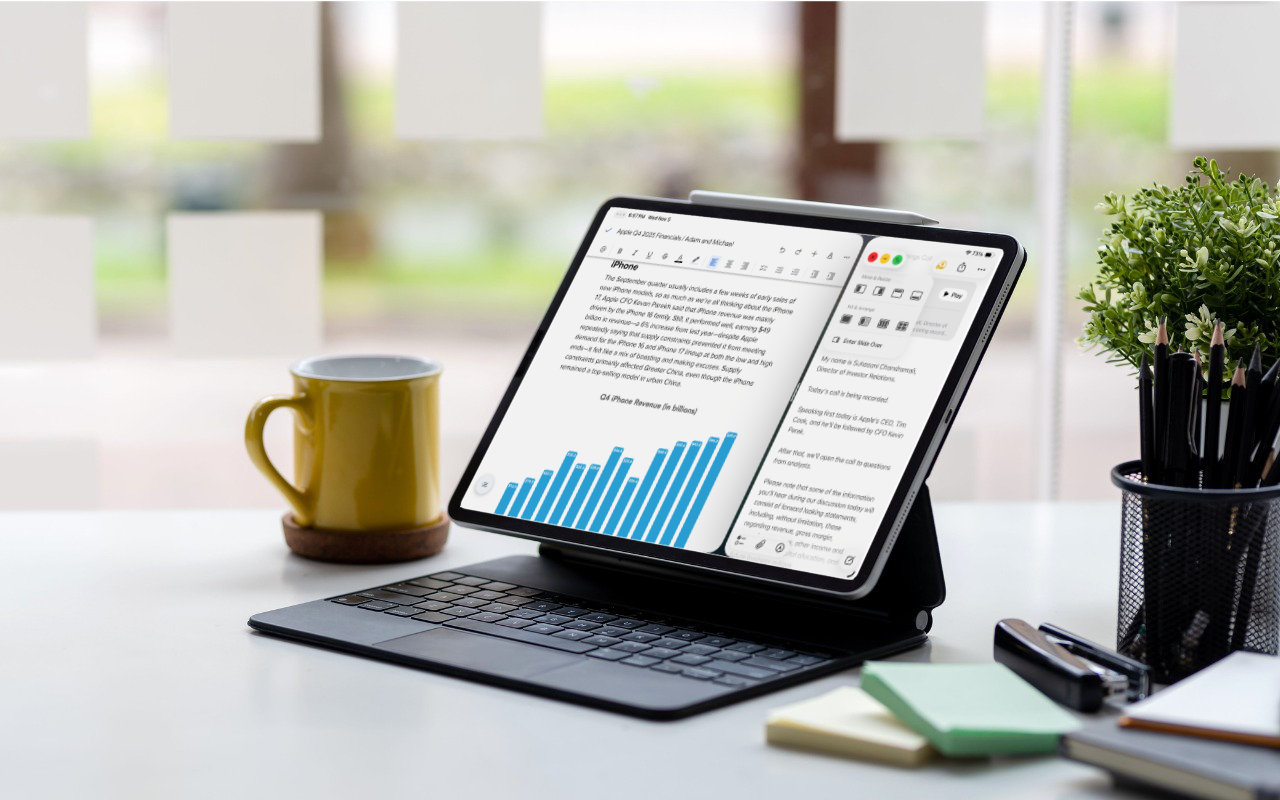
The most important improvement in iPadOS 26 is how it handles multiple apps and windows at the same time. Mac users are used to resizing windows, placing them exactly where needed, and keeping several tasks visible without committing to a rigid full-screen layout. On the iPad, that kind of control has historically been limited. With iPadOS 26, multitasking becomes more desktop-like because windows can be managed with greater precision and less guesswork.
In practical use, this means you can keep a browser window open next to Notes, Messages, Mail, or Files and move between them with less interruption. If you are researching in Safari while drafting in Pages or Word, you no longer need to constantly jump in and out of one app just to see source material. If you review attachments while replying to email, the layout can stay stable for longer sessions. For Mac users, that stability is what makes multitasking productive rather than distracting.
To get the most from these features, start with a simple three-step setup:
- Open the two or three apps you use most often together, such as Safari, Files, and Notes.
- Resize and position each window so your primary task stays centered and your reference apps remain visible.
- Repeat the same layout for common routines, such as invoicing, document review, or schoolwork, until the arrangement becomes part of your workflow.
Another key advantage is reduced cognitive load. When windows behave more like they do on a Mac, you spend less time remembering where an app went and more time completing the task itself. That is especially useful for users who split time between a Mac at a desk and an iPad on the go. The closer the interaction model feels to macOS, the easier it is to transition between devices without re-learning your work habits.
Best real-world workflows for Mac and iPad users
Not every task benefits equally from enhanced multitasking, so it helps to focus on the workflows where iPadOS 26 delivers the clearest gains. For many Mac users in Bucks County, the sweet spot is everyday productivity: email, web research, PDF review, scheduling, note-taking, remote meetings, and cloud file management. These are the tasks where an iPad can now feel less like a companion device and more like a practical work machine.
One useful workflow is document review. Open Files or a cloud storage app in one window, keep a PDF open in another, and place Notes or Mail beside it for comments and follow-up. This setup works well for contracts, school forms, estimates, or shared business documents. Another effective use case is communication triage: keep Mail, Messages, and Calendar visible together so you can confirm details, respond quickly, and schedule next steps without repeatedly leaving one app.
For students, consultants, and remote workers, browser-based work also improves. A common layout is Safari for research, a notes app for summaries, and a task manager or email app for action items. If you use an external keyboard and trackpad, the experience becomes even more Mac-like because pointer control and keyboard shortcuts reduce touch friction during longer sessions.
- Writing and research: Keep source pages visible while drafting.
- Admin work: Review invoices, attachments, and spreadsheets side by side.
- Meetings: Keep video calls active while referencing notes or agendas.
- Home office tasks: Manage cloud files, scans, and communication in one view.
The key is to match the iPad to tasks that benefit from portability and focused multitasking. If your work depends on specialized desktop software, deep file system access, or heavy external peripheral support, a Mac will still be stronger. But for many routine tasks, iPadOS 26 closes enough of the gap to make the iPad substantially more useful.
How to set up multitasking so it actually feels productive
New multitasking features only help if the device is configured well. Many users try advanced windowing once, feel overwhelmed, and then return to single-app mode. A better approach is to build a repeatable setup that mirrors the way you already work on a Mac. Start by identifying your most common task pairs rather than opening many apps at once. Two well-arranged windows are usually more productive than five crowded ones.
Begin with your input tools. If you plan to multitask regularly, use a keyboard and trackpad or mouse whenever possible. This immediately makes window movement, text selection, and switching between apps more efficient. Next, review your Dock and Home Screen so your most-used apps are easy to launch. Grouping work apps together reduces friction when building a multitasking layout.
Then follow this setup process:
- Choose one core workflow, such as Safari plus Notes or Mail plus Files.
- Open only the apps needed for that workflow and arrange them before starting work.
- Test whether text, links, images, or files can be dragged between windows smoothly.
- Adjust window sizes so the active app gets most of the screen and secondary apps remain readable.
- Use the same arrangement for several days before adding more complexity.
It is also smart to manage notifications. Too many alerts can make multitasking feel chaotic, especially on a smaller display. Silence nonessential notifications during work sessions so the benefit of multiple windows is not undermined by constant interruptions. Finally, if you use cloud storage, verify that your files are available offline when needed. A polished multitasking system still breaks down if the document you need has not synced.
When set up intentionally, iPadOS 26 can support a calmer, more Mac-like workflow. The goal is not to copy every desktop habit exactly, but to create a mobile workspace that preserves context, reduces app switching, and makes common tasks faster to complete.
Limits, tradeoffs, and who should consider using it more often
Even though ipados 26 brings mac-like multitasking to the ipad, it is important to set realistic expectations. The iPad is more capable than before, but it still sits between a phone and a Mac in terms of flexibility. For many users, that is a strength: it offers a cleaner, more focused environment with enough multitasking to handle serious everyday work. For others, especially those with advanced software needs, the remaining tradeoffs still matter.
The biggest limitation is app class. If your workflow depends on full desktop applications, specialized utilities, developer tools, or legacy business software, the Mac remains the better platform. File handling is also improved by better multitasking, but users who constantly move large batches of files, manage external drives in complex ways, or rely on precise folder-based workflows may still find macOS faster and less restrictive. Multi-window support also varies by app, so some software will take better advantage of iPadOS 26 than others.
That said, several groups should strongly consider using the iPad more often after this update:
- Mac users who travel: The iPad becomes more practical for email, documents, and browser-based work away from the desk.
- Students and educators: Notes, research, reading, and communication fit well within the new multitasking model.
- Home office users: Scheduling, PDFs, forms, and light admin work are easier to manage side by side.
- Users with external displays and keyboards: The desktop-style feel improves significantly with proper accessories.
The best way to judge the update is to test one week of real tasks, not just features. Pick a routine you normally do on a Mac, recreate it on the iPad, and note where the experience feels faster, slower, or simply different. That kind of hands-on comparison reveals whether iPadOS 26 is merely interesting or genuinely useful in your daily workflow.
Contact G2 Computers in Washington Crossing
Need help? Contact G2 Computers today.





