

Why Extreme Heat Is Hard on Macs, iPhones, and iPads

If you are looking for a heat wave survival guide for your apple devices, the first thing to understand is that heat is not just uncomfortable for electronics—it directly affects performance, battery health, charging, and long-term reliability. In Washington Crossing, Bucks County, and nearby Newtown, summer heat waves can push indoor rooms, parked cars, porches, and sun-facing desks well beyond what a MacBook, iPhone, or iPad can comfortably handle. Apple devices are designed to manage temperature automatically, but that protection often means reduced speed, dimmer screens, paused charging, camera flash limits, or a full temperature warning.
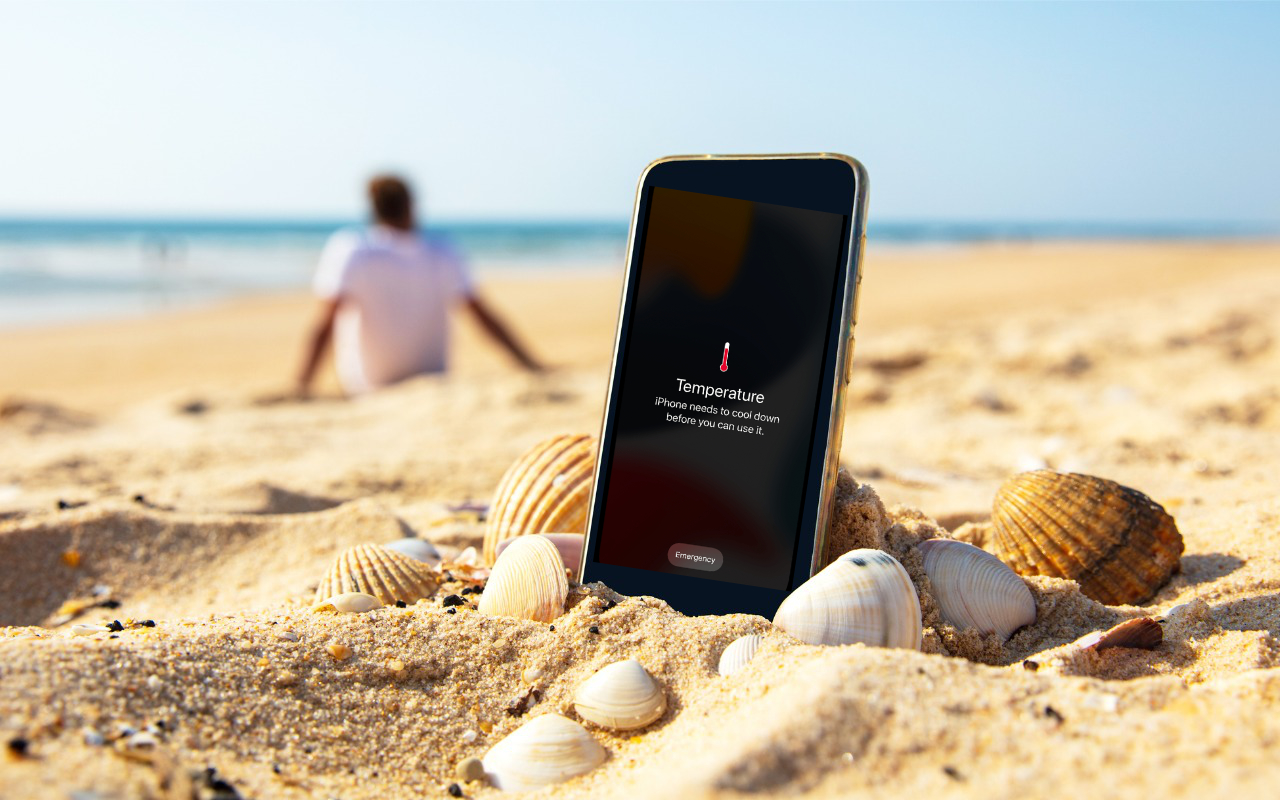
Mac users often notice heat first through fan noise, sluggish performance, or a warm chassis. On Intel-based Macs, the fans may spin aggressively as the system tries to cool the processor. On Apple silicon Macs, you may notice fewer obvious signs at first, but sustained heat can still trigger thermal throttling, where the system slows itself to avoid damage. iPhones and iPads may dim the display, stop charging above 80 percent for a while, or show a message that the device needs to cool down before use.
Heat stress also affects batteries more than many users realize. Lithium-ion batteries age faster when exposed to high temperatures, especially if the device is charging, running intensive apps, and sitting in direct sunlight at the same time. That combination is common during travel, outdoor work, navigation, video calls, and streaming. Accessories can make things worse too. Thick protective cases, low-quality chargers, and poor airflow around docks or stands can trap heat close to the device.
The good news is that most heat-related problems are preventable. Once you know the warning signs and understand how Apple devices behave in hot weather, you can make simple adjustments that protect performance and extend device lifespan without giving up daily use.
Heat Wave Survival Guide for Your Apple Devices: Daily Prevention Steps
The best way to protect your Apple gear during a heat wave is to prevent heat buildup before the device starts warning you. Start with location. Avoid leaving a MacBook, iPhone, or iPad in a parked car, on a sunny windowsill, on dark outdoor furniture, or inside a bag immediately after use. Even in Bucks County neighborhoods where the outdoor temperature seems manageable, surfaces and enclosed spaces can become dangerously hot very quickly.
For Macs, use them on hard, flat surfaces whenever possible. Beds, couches, blankets, and laps can block vents on many models or reduce passive cooling on fanless designs. If you use a MacBook for long sessions, raise the rear slightly with a stand to improve airflow. Keep the room cooler if possible, and avoid placing the computer near a sunny window or directly next to another heat-producing device like a monitor power supply, gaming console, or router.
- Lower screen brightness to reduce heat and battery drain.
- Close unnecessary apps and browser tabs, especially video-heavy or ad-heavy pages.
- Pause demanding tasks like video exports, cloud sync bursts, gaming, or large photo indexing during the hottest part of the day.
- Remove bulky cases from iPhones and iPads if they feel unusually warm while charging or streaming.
- Use certified chargers and cables that regulate power properly.
- Keep devices out of direct sun, even for short periods during outdoor use.
Charging habits matter too. If a device is already warm, charging can push it further into a high-temperature state. Charge in a cool room, unplug once the device becomes noticeably hot, and avoid fast charging in direct sunlight or inside a vehicle. Prevention is less about one dramatic fix and more about stacking small choices that keep heat from building in the first place.
What to Do When Your Apple Device Overheats
If your Mac, iPhone, or iPad becomes too hot, act quickly but gently. The goal is to cool it safely, not shock the hardware. If you see a temperature warning, if the screen dims unexpectedly, if charging stops, or if the device feels excessively hot to the touch, stop high-demand use immediately. Close intensive apps, disconnect accessories that draw power, and move the device into a shaded, cooler indoor space.
For a MacBook, save your work and quit demanding tasks first. If the system is still responsive, shut it down for a short period and place it on a hard surface with plenty of airflow. Do not put it in a refrigerator, freezer, or directly in front of blasting cold air. Rapid temperature swings can create condensation inside the device, which introduces a different and more serious risk. If you are using an external display, unplugging it can reduce graphics load and lower heat output.
For an iPhone or iPad, remove it from direct sunlight, unplug the charger, and take off the case if it is trapping heat. Lock the screen or power the device off for a few minutes. Avoid using GPS navigation, 5G-intensive apps, camera recording, or gaming until the temperature normalizes. If the device displays a temperature warning screen, let it rest and do not try to force it back into use.
- Move the device to a cooler environment.
- Stop charging and disconnect accessories.
- Close intensive apps or shut down temporarily.
- Remove any case that traps heat.
- Wait for the device to cool naturally before resuming use.
If overheating happens repeatedly under light use, the issue may involve battery health, background software activity, ventilation blockage, or charger quality. Repeated heat events are a sign to investigate rather than ignore.
Mac-Specific Fixes for Heat, Fan Noise, and Slowdowns
Mac users often need a more targeted approach because laptops and desktops generate heat differently depending on the workload. If your Mac runs hot during a heat wave, start by checking what is consuming system resources. Background cloud syncing, browser tabs with auto-playing media, video conferencing apps, photo processing, and external display support can all raise temperatures significantly. Even if the Mac feels idle, hidden background tasks may still be active.
One practical step is to reduce simultaneous workload. Instead of running backup software, large downloads, video editing, and dozens of browser tabs at once, stagger those tasks. If you use a MacBook with vents, inspect them for dust buildup. Dust can restrict airflow and make fans work harder. Keep the area around the machine clear, especially if you use it on a desk crowded with papers or accessories that trap warm air.
- Restart the Mac to clear stuck processes that may be driving CPU usage.
- Update macOS and apps because software bugs can cause runaway background activity.
- Reduce external display load by lowering resolution demands or disconnecting an extra monitor temporarily.
- Use Safari or a lighter browser setup if your current browser is consuming excessive memory and CPU.
- Check battery health if the Mac heats excessively while charging or under light use.
- Keep storage from becoming completely full, since very low free space can worsen system strain.
Desktop Macs also need attention during hot weather. Make sure vents are not blocked by walls, cabinets, or dust. If your workspace in Newtown or Washington Crossing gets warm in the afternoon, shifting heavy tasks to morning or evening can make a noticeable difference. Heat management on a Mac is often a mix of airflow, software efficiency, and timing.
Protecting Battery Health and Long-Term Performance During Summer
Heat waves do not just create temporary slowdowns—they can shorten the useful life of your Apple devices if high temperatures become a pattern. Battery health is usually the first long-term casualty. Repeated exposure to heat while charging, streaming, navigating, or running processor-heavy tasks can accelerate chemical aging inside lithium-ion batteries. Once that wear builds up, you may notice shorter runtime, unexpected battery drops, and more heat during normal use.
To limit long-term damage, focus on charging and storage habits. Avoid leaving devices at 100 percent in hot environments for long periods, especially in cars, garages, or sunlit rooms. If you are not using a device for a while, store it in a cool, dry place rather than an attic, vehicle, or enclosed porch. During especially hot stretches in Bucks County, it helps to charge overnight or early in the morning when indoor temperatures are lower.
- Do not leave devices in parked cars, even for short errands.
- Charge in well-ventilated spaces and avoid covering the device while plugged in.
- Use optimized charging features when available to reduce time spent at full charge.
- Lower workload while charging so the battery is not heating from both power input and heavy use.
- Watch for repeated dimming, charging pauses, or sudden lag, which can point to recurring thermal stress.
Think of summer device care as preventive maintenance. A single overheating event may not ruin a Mac or iPhone, but repeated heat exposure can quietly reduce battery capacity and overall stability. By adjusting where you use your devices, when you charge them, and how much load you place on them during peak heat, you can keep Apple hardware running more reliably through the hottest part of the season.
Contact G2 Computers in Washington Crossing
Need help? Contact G2 Computers today.





