

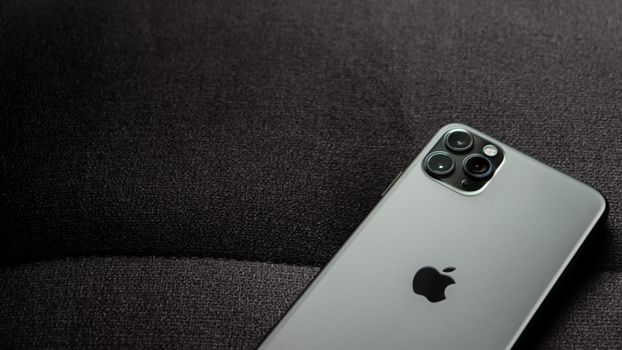
What's Going On With the AT&T iPhone 18 Pro Max
If you picked up a new iPhone 18 Pro Max on AT&T in the last couple of weeks and have had trouble placing calls or sending texts, you’re not imagining it. Since the phone began shipping roughly two weeks ago, a growing number of AT&T customers have reported that their brand-new flagship simply won’t do the most basic phone tasks. Calls don’t go through. Texts don’t send. Most concerning, some owners say they couldn’t reach emergency services.
Apple has now addressed the problem publicly. In a statement to the press, the company said that a small number of iPhone 18 Pro Max users on the AT&T network are affected, and that phones already showing the problem will need to be replaced, not just updated. That second point is the important one. Most launch-week bugs get patched with a software or carrier settings update you install over a cup of coffee. A replacement suggests the issue can’t be reliably fixed on affected devices through software alone.
A few details worth keeping straight:
- It appears limited to AT&T. The reports and Apple’s statement both point to AT&T customers specifically. If you’re on Verizon, T-Mobile, or another carrier, this particular problem doesn’t appear to affect you.
- It appears limited to the Pro Max. Owners of the standard iPhone 18 or iPhone 18 Pro on AT&T haven’t been named in Apple’s statement.
- Apple calls it a small number. Not every AT&T Pro Max is affected. Plenty of people are using theirs without any trouble.
Apple hasn’t shared a deep technical explanation of the root cause, and we’d caution against trusting anyone online who claims to know exactly what’s wrong. What we do know is enough to act on: if your phone is affected, the fix is a new phone. Below, we’ll walk through why this matters for those of us here in Washington Crossing, Newtown, and the rest of Bucks County, how to check your own device, and how to use your Mac to make the swap painless.
Why a Phone That Can't Call Is a Bigger Deal Around Here
It’s tempting to shrug this off. Most of us spend more time in apps than on actual phone calls, and many of us text through iMessage, which travels over data. But a phone that can’t reliably reach a carrier network is a genuine safety concern, and in our corner of Bucks County that concern is sharper than it might be in a dense city.
Think about how many of us drive River Road along the Delaware, cut through the back roads between Washington Crossing and Upper Makefield, or head out early on Route 32 toward New Hope. Coverage in parts of the river valley has always been uneven. Add a phone that already struggles to connect, and you could find yourself unable to call for help after a fender bender, a deer strike, or a breakdown on a dark stretch of road. The same goes for anyone hiking in Washington Crossing Historic Park or Bowman’s Hill, or kayaking on the river during the warmer months.
There’s a household angle, too. Many families in Newtown and Yardley have done away with landlines entirely. If your iPhone is the only phone in the house, and it can’t dial 911, that’s a gap you need to close today, not when the replacement arrives. We also hear from plenty of clients who help aging parents manage their technology. If you bought Mom or Dad a new Pro Max on your AT&T family plan, check their phone, because they may not notice texts quietly failing or realize something is wrong until they urgently need it.
Commuters should pay attention as well. If you rely on your phone for work calls on the way into Philadelphia or across the bridges to Trenton and Princeton, dropped and failed calls can cause real headaches with clients and colleagues.
None of this is meant to cause panic. Apple says only a small number of phones are affected. But because the failure involves emergency calling, the smart move is to verify your phone works rather than assume it does.
How to Check Your Phone and Stay Safe in the Meantime
The good news is that figuring out whether you’re affected takes only a few minutes. Here’s the approach we recommend:
- Make a test call over cellular. Turn off Wi-Fi in Control Center so you know you’re using AT&T’s network, then call another phone in your house or a friend. Do this in a spot where you normally have solid signal.
- Send a regular SMS text. iMessages travel over data and can mask the problem. Text someone with an Android phone, or temporarily turn off iMessage in Settings to force a green-bubble SMS. If it fails, that’s a red flag.
- Check for updates. Go to Settings, General, Software Update, and install anything available. Then go to Settings, General, About and wait a moment. If a carrier settings update is available, you’ll get a prompt. These won’t necessarily fix an affected phone, but they rule out simpler causes.
- Don’t place a test call to 911. Please don’t. Testing normal calls and texts is enough to tell you whether something’s wrong.
If your phone fails these tests, contact Apple or AT&T to arrange a replacement. While you wait, put a backup plan in place:
- Turn on Wi-Fi Calling under Settings, Cellular, Wi-Fi Calling. At home, this may let calls route over your internet connection instead. Make sure your emergency address is current there, so dispatchers know where you are if you call 911 over Wi-Fi. If you’ve moved recently, say from Newtown Township to Lower Makefield, update it.
- Keep an older phone charged. If you held onto your previous iPhone, charge it and keep it in a drawer. Even without active service, U.S. phones can generally attempt 911 calls on any available network.
- Don’t count on satellite SOS. Emergency SOS via satellite is designed for situations with no cellular or Wi-Fi coverage at all, so it may not step in for this kind of problem.
- Tell your household. Make sure family members know which phone to grab in an emergency.
Use Your Mac to Make the Replacement Painless
If you need a replacement, a little preparation on your Mac will save you hours of frustration. A new iPhone is only as good as the data you bring over to it, and we’ve seen too many people lose photos, messages, and two-factor codes during a rushed swap.
Make two backups, not one. First, confirm iCloud Backup is on and recently completed under Settings, your name, iCloud, iCloud Backup. Tap Back Up Now while on Wi-Fi. Second, plug the iPhone into your Mac, open Finder, select your iPhone in the sidebar, and choose to back up all data to this Mac. Check the box to encrypt the local backup. Encryption matters because it preserves saved passwords, Health data, and Wi-Fi settings that an unencrypted backup leaves out. Store the password in your Mac’s Keychain or a password manager, because there’s no way to recover it if you forget.
Handle the extras before handing over the phone:
- Authenticator apps. If you use Google Authenticator, Microsoft Authenticator, or similar for work or banking logins, confirm your codes will transfer or are backed up. This is the number one thing people forget.
- Apple Watch. Unpairing your watch through the Watch app creates a backup of it, making re-pairing to the new phone much smoother.
- eSIM. Recent U.S. iPhones use eSIM rather than a physical SIM card. Ask Apple or AT&T exactly how your line will move to the replacement so you’re not left without service.
- Find My. Follow Apple’s instructions on whether to turn off Find My or erase the device before the exchange.
Lean on Continuity while you wait. iMessage on your Mac works over your internet connection, so conversations with other Apple users should keep flowing. SMS forwarding and calling from your Mac normally relay through your iPhone, so those may be affected. AT&T does support Wi-Fi Calling on other devices, which may let your Mac or iPad place calls on its own, but test it before relying on it.
Will a Replacement Definitely Fix It? Key Takeaways
This is the question we expect to hear most, and the honest answer is that it should, though nobody outside Apple can promise it with certainty yet. Apple’s decision to swap affected units suggests the company believes the problem is tied to specific devices rather than every Pro Max on AT&T’s network. If that’s the case, a new phone from a later batch should behave normally. But if your replacement shows the same symptoms, don’t accept it as normal. Go back to Apple promptly, keep notes on dates and what you’ve tried, and escalate. A phone that can’t make calls isn’t a minor inconvenience you should have to live with.
There’s a broader lesson here too, one we’ve seen play out across more than three decades of helping local clients with their technology. First-production hardware sometimes ships with issues that only surface once thousands of real people start using it in the real world. That isn’t a knock on Apple specifically; it happens across the industry. But it’s a good reason to keep your old phone for a couple of weeks after an upgrade instead of trading it in on day one, and to always have a current backup on your Mac.
Here’s the short version for Washington Crossing, Newtown, and Bucks County readers:
- Check now if you own an iPhone 18 Pro Max on AT&T. Test a cellular call and a plain SMS text with Wi-Fi turned off.
- If it fails, request a replacement through Apple or AT&T. Apple has said affected phones need to be swapped.
- Close the safety gap immediately: enable Wi-Fi Calling, update your emergency address, and keep a backup phone charged.
- Back up twice, to iCloud and as an encrypted Finder backup on your Mac, before handing anything over.
- Check on family members, especially older relatives on your plan who may not notice failing texts.
- Verify the replacement works on day one and push back if it doesn’t.
Most AT&T Pro Max owners won’t be affected. But a few minutes of testing now beats discovering the problem on a dark stretch of River Road.
Source
Based on reporting from Macworld.
Contact G2 Computers in Washington Crossing
Need help? Contact G2 Computers today.





