

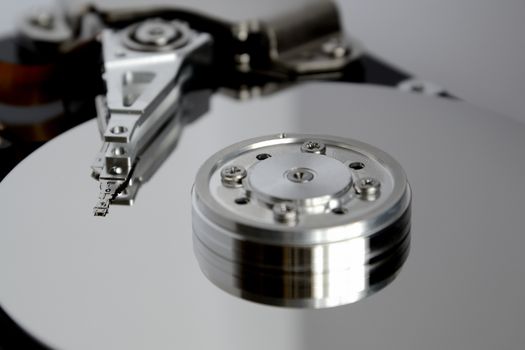
Data Recovery From Failed Hard Drive? Answered by G2 Computers.
What to Do First When You Need Data Recovery from Failed Hard Drive

Data recovery from failed hard drive starts with one rule: stop using the drive immediately. Continued power cycles, repeated boot attempts, or running random repair tools can make a recoverable problem much worse. If the drive contains family photos, business records, accounting files, or school documents, the safest first step is to disconnect it and avoid writing any new data to it.
Start by identifying the type of failure. A logical failure means the drive powers on but files are missing, the partition is unreadable, or the system asks to format the disk. A physical failure often includes clicking, grinding, beeping, burning smells, or a drive that does not spin up at all. Logical issues sometimes allow careful recovery with the right process. Physical issues usually require a much more controlled approach because internal damage can worsen with every use.
- Shut down the computer and disconnect the drive.
- Do not install recovery software onto the affected drive.
- Do not format the disk, even if prompted.
- Check whether the problem is the enclosure, cable, or power adapter if it is an external drive.
- Write down symptoms such as noises, error messages, and whether the drive appears in BIOS or Disk Management.
These early steps protect the best chance of getting files back without causing additional damage.
Signs of Failure and How to Narrow Down the Problem
Hard drive failure is not always obvious. Some drives fail suddenly, while others show warning signs for days or weeks. Recognizing the symptoms helps determine whether you can safely inspect the issue or whether the drive should be left alone. Common signs include very slow file access, frequent freezing during startup, corrupted folders, SMART warnings, repeated disconnects on an external drive, or unusual mechanical sounds.
A practical way to narrow down the cause is to test the simplest components first. If it is an external drive, try a different USB cable, a different port, and if applicable, a known-good power adapter. If the drive is in a USB enclosure, the enclosure itself may have failed while the actual disk is still intact. For internal drives, confirm whether the system BIOS detects the device. Detection without file access often points to file system or partition damage. No detection at all may suggest a board, motor, or head issue.
- If the drive clicks or grinds, power it off immediately.
- If the drive is detected, avoid running defragmentation or disk repair tools first.
- If files are critical, create a sector-by-sector clone before recovery attempts.
- If the drive intermittently disconnects, suspect failing hardware rather than simple corruption.
Careful diagnosis prevents avoidable mistakes and helps match the recovery method to the actual failure.
Data Recovery from Failed Hard Drive: Safe Recovery Methods
The safest recovery method depends on whether the failure is logical or physical. For a logically damaged drive that still reads consistently, the best practice is to make a full clone to another healthy disk of equal or larger size. Recovery work should then be performed on the clone, not the original. This reduces stress on a failing drive and preserves the original state if the first recovery pass does not succeed.
Once a clone is created, file recovery software may help locate deleted files, damaged partitions, or inaccessible folders. Save recovered files to a different drive only. If the disk has bad sectors, use tools designed to handle read errors slowly and selectively rather than forcing repeated reads across the entire surface. If the drive is physically damaged, making noise, overheating, or not spinning, do not open it. Hard drives require clean-room conditions and precise parts matching; opening one at home almost always introduces contamination and lowers recovery odds.
- Recover to a separate storage device, never back onto the failed disk.
- Prioritize irreplaceable folders first, such as photos, financial files, and databases.
- Keep the drive cool and powered only as long as necessary during imaging.
- Document recovered file locations and check file integrity after transfer.
A methodical, low-stress process gives the best chance of retrieving usable data without turning a partial failure into a total loss.
How to Prevent the Next Hard Drive Emergency
After a recovery situation, the most important lesson is that every hard drive will eventually fail. Traditional hard drives have moving parts, and even solid-state storage can fail without much warning. Prevention is not about stopping failure forever; it is about making sure one failed device does not become a disaster.
A practical backup plan uses the 3-2-1 rule: keep three copies of important data, on two different types of storage, with one copy offsite or in the cloud. For home users, that may mean the working computer, an external backup drive, and a cloud backup account. For small offices, add automated image backups, versioned file backups, and routine restore testing. Backups that are never tested are a common problem, especially when people assume copied files are usable without verification.
- Enable automatic daily backups for documents, photos, and desktop folders.
- Replace drives that show SMART warnings or recurring read errors.
- Use a surge protector or battery backup to reduce power-related corruption.
- Label backup drives and review them monthly.
- Test a sample restore so you know files can actually be recovered.
Good backup habits turn a failed drive from a crisis into an inconvenience, which is the real goal of any long-term data protection plan.
Contact G2 Computers in Washington Crossing
Need help? Contact G2 Computers today.
35+ years
35+ years of trusted service
Since 1991
Established 1991





