

Here’s a clever new macOS trick for video calls:
Edge Light uses the edges of your screen to brighten your face – like an on-screen ring light – perfect for those moments when you’re calling from a dim room, a corner of the house, or that mysterious place where every lamp has apparently retired.
In macOS 26.2 Tahoe, you can turn on Edge Light as a video effect, and your Mac will create a soft white glow around the outer edges of the display to help light you up on camera.
Will it replace a real light? No.
Will it stop you from looking like you’re calling in from a witness protection program? Very much so!
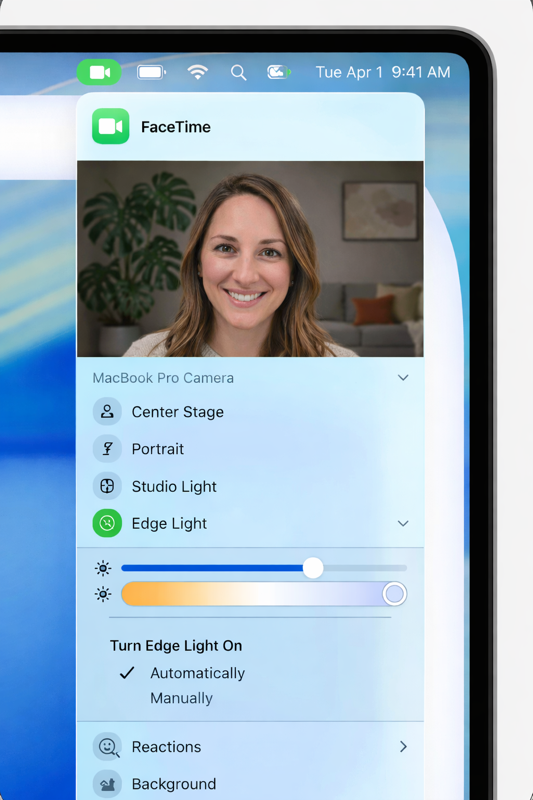
How to turn on Edge Light
- Start a video call (FaceTime, Zoom, Teams, etc.)
- Click the green video camera icon in your menu bar (it appears when your camera is active)
- Look for Edge Light
- Toggle it On
Want to tweak it?
Click the little disclosure arrow next to Edge Light to adjust:
Color temperature (cooler white vs warmer glow)
Light width (how thick the glow border is)
Extra nice features
If you’re using a 2024 Mac or newer, you can even set Edge Light to:
- turn on automatically in low-light conditions
And there’s a smart setting called Mouse Awareness, which makes the glow recede when you move your pointer near the edge – so it doesn’t fight you while you click around.
Bottom line
Edge Light won’t replace a real lamp or studio light but it will make you look more awake, more visible, and a lot less “mysterious shadow figure on a Zoom call.”
If you want help finding it on your Mac, stop by G2 we’ll help you switch it on in about 30 seconds.