

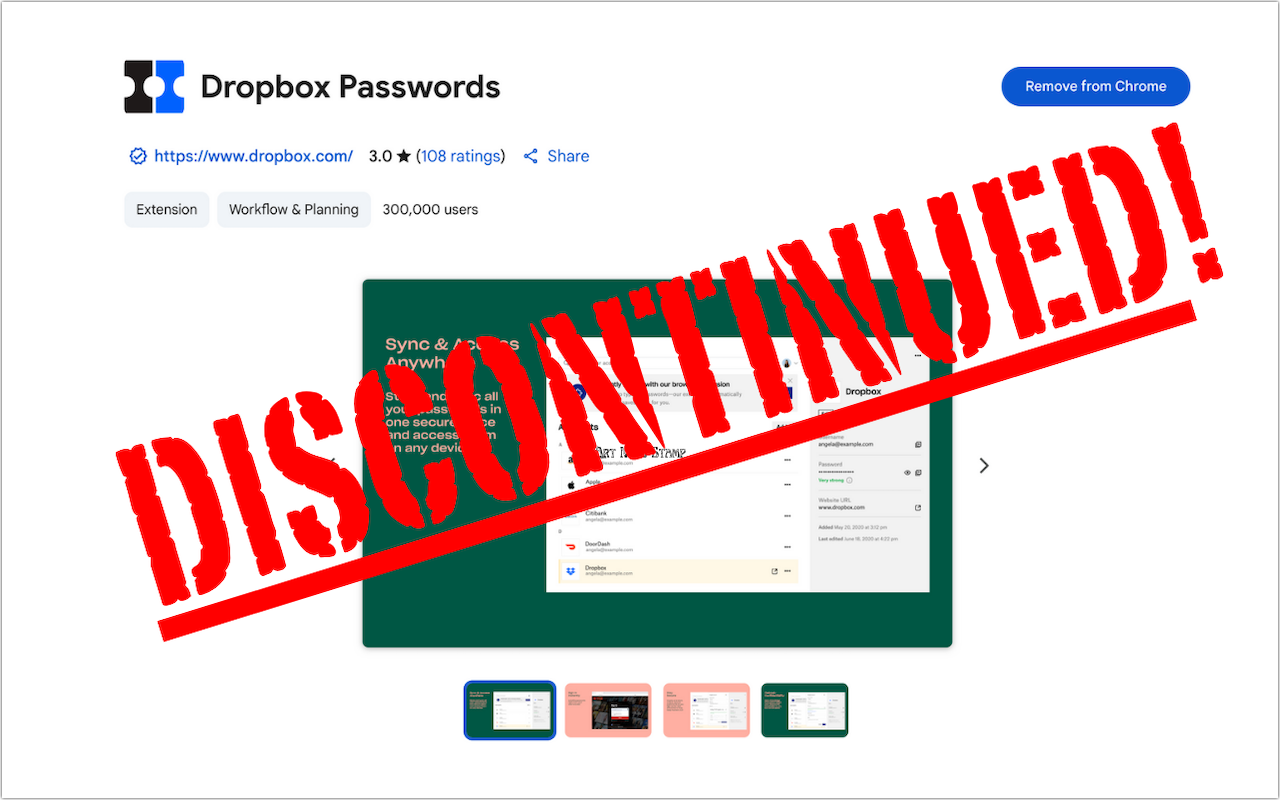
Why this change matters right now
If you searched dropbox passwords ending: switch to 1password now, you are likely trying to understand what happens to your saved logins, whether your data is at risk, and how to move without creating a mess. The short answer is that when a password manager feature is discontinued, the biggest risk is not the shutdown itself but the confusion that follows: forgotten exports, weak reused passwords, missing two-factor codes, and family or team members left without access. A careful migration plan prevents those problems.
For people in Washington Crossing, Bucks County, and Newtown, the practical issue is the same as anywhere else: you need a secure place for passwords, passkeys, payment cards, software licenses, and recovery notes before the old system stops being useful. 1Password is a common destination because it supports cross-device syncing, secure sharing, watchtower-style security alerts, and organized vaults for personal and business use. The goal is not merely to copy data from one app to another, but to improve how that data is stored and maintained.
Before you begin, take inventory. Make a list of what you currently keep in Dropbox Passwords: website logins, app credentials, notes, card details, and any shared passwords used by a household or office. Then identify which devices are involved, such as Windows PCs, Macs, iPhones, Android phones, and browser extensions in Chrome, Edge, Firefox, or Safari. This matters because migration is easiest when you know where the current data lives and where you expect to use it afterward.
You should also expect some cleanup. Most long-time password collections contain duplicates, outdated logins, old work accounts, and weak passwords reused across multiple sites. Treat the switch as a chance to improve security, not just relocate it. A clean import into 1Password, followed by a review of weak or duplicate credentials, gives you a better result than a rushed one-click move.
Dropbox passwords ending: switch to 1password now with a clean migration plan
The most reliable migration starts with preparation, not exporting. First, make sure you can still sign in to important accounts such as email, banking, cloud storage, and your primary mobile carrier. Your email account is especially important because it is often the recovery path for everything else. If you do not know that password or if it is shared across multiple services, fix that before moving on.
Next, update your environment. Install the latest version of 1Password on the devices you actually use. Add the browser extension on your main browser and sign in everywhere you expect to access your vault. Create a clear vault structure before importing data. For example:
- Personal for everyday websites, shopping, streaming, and personal email
- Financial for banking, tax portals, and payment services
- Family or Shared for Wi-Fi, utilities, and household subscriptions
- Work for business logins, VPNs, software licenses, and admin portals
Then export from Dropbox Passwords using the format it supports, typically CSV if available. Save that export to a secure temporary location on a computer you control, not a shared desktop or downloads folder left unattended. CSV files are sensitive because they may contain usernames, URLs, and passwords in readable form. Once exported, immediately import the file into 1Password using its import tool and verify the item count.
After import, do not assume every field landed perfectly. Open a sample of entries from different categories and confirm website addresses, usernames, passwords, and notes are in the right places. Pay special attention to accounts with multiple logins, custom fields, or unusual sign-in pages. If your old setup included autofill on mobile devices, test 1Password on iPhone or Android before you remove the old app. A migration is complete only when login, autofill, and recovery all work on the devices you use daily.
How to secure accounts after the import
Importing passwords is only step one. The stronger move is to use 1Password to fix old security habits that may have gone unnoticed for years. Start with your highest-risk accounts: email, financial institutions, password manager account, cloud storage, and any administrator accounts for business systems. Change those passwords first, making each one unique and long. A password manager makes this practical because you do not need to memorize them.
Then review for duplicates and weak passwords. If the same password appears on several sites, those accounts should be updated one by one. Reused passwords are dangerous because one breach can expose many services at once. Also look for old accounts tied to former jobs, school portals, expired subscriptions, and websites you no longer use. Removing stale entries makes your vault easier to trust.
Two-factor authentication should be enabled wherever possible. Use it especially for email, banking, payroll, cloud storage, and social accounts. Store backup codes in 1Password so they are available when you need them. If a site supports passkeys, consider adopting them for accounts where convenience and phishing resistance matter. Keep recovery methods current by checking backup email addresses, phone numbers, and trusted devices.
- Change the password on your primary email account and confirm recovery options
- Enable two-factor authentication on critical accounts
- Replace reused passwords with unique generated ones
- Delete obsolete or duplicate entries after confirming they are no longer needed
- Store recovery codes, software licenses, and important notes in organized vaults
Finally, verify autofill behavior in your browser and on mobile. Good security should also be usable. If login prompts are confusing or duplicate entries appear, clean them up now. A tidy vault reduces mistakes, and fewer mistakes mean fewer lockouts and support headaches later.
Common migration problems and how to avoid them
Most password manager moves fail in predictable ways. One common issue is incomplete exports. Some entries may not transfer cleanly, especially if they contain custom notes, multiple website URLs, or unusual field names. Another problem is importing duplicates because users try more than one export file or repeat the import after partial testing. Duplicates make autofill unreliable and increase the chance of using an outdated password.
Another frequent mistake is disabling the old password manager too early. Keep Dropbox Passwords available until you have tested a representative sample of accounts across browsers and mobile devices. This does not mean using both indefinitely. It means keeping the old source accessible during validation so you can compare entries if something looks wrong. Once the new setup is confirmed, remove the old browser extension and app access to avoid conflicts.
Shared credentials can also create trouble. In households and small offices around Washington Crossing, Bucks County, and Newtown, it is common for Wi-Fi passwords, streaming accounts, utility logins, and vendor portals to be known by several people. During migration, move those into a shared vault rather than sending passwords by text or email. Shared vaults create a cleaner handoff and reduce the risk of one person keeping outdated credentials in a notes app or spreadsheet.
- Problem: CSV export stored in Downloads for days
Fix: Import immediately, then securely delete the file - Problem: Duplicate entries after multiple imports
Fix: Compare timestamps, remove older items, and test autofill - Problem: Missing notes or custom fields
Fix: Spot-check critical accounts and manually repair important entries - Problem: Lockout after changing passwords
Fix: Confirm recovery email, backup codes, and two-factor setup first
The key is patience. A password migration is not difficult, but it is detail-sensitive. Taking an extra hour to verify imports and cleanup is far easier than recovering access to accounts under pressure later.
A practical setup for households and small offices
Once the move is done, the best long-term result comes from a simple system everyone can follow. For households, that usually means separating personal logins from shared essentials. Personal vaults should hold private email, banking, health portals, and shopping accounts. A shared vault can hold Wi-Fi details, utility providers, alarm systems, streaming services, and trusted emergency information. This keeps private items private while still making common accounts accessible when needed.
For small offices, structure matters even more. Create vaults by function instead of dumping everything into one list. Examples include accounting, operations, marketing, vendor accounts, web hosting, and device administration. Use shared access only where necessary. Not every user needs every password. Limiting access reduces accidental changes and makes offboarding easier if a staff member leaves.
Build a maintenance routine so the vault stays healthy:
- Review weak, reused, or compromised passwords once a month
- Remove logins for former employees, old vendors, and retired services
- Update shared credentials after major staffing or household changes
- Store recovery codes and important notes with the related login item
- Test access to critical accounts before travel, tax season, or major projects
It is also wise to document a few rules everyone understands. Do not text passwords. Do not save them in browsers if 1Password is the chosen system. Do not reuse the same password for multiple services. Use generated passwords for new accounts, and save them immediately. If a site supports passkeys, evaluate whether they simplify sign-in without weakening account recovery.
The reason people search for dropbox passwords ending: switch to 1password now is not just to move data. They want a stable, secure setup that works every day. A successful migration gives you that: organized access, fewer reused passwords, better sharing, and a much lower chance of account lockouts or preventable security problems.
Contact G2 Computers in Washington Crossing
Need help? Contact G2 Computers today.





